
 闲愁看客
闲愁看客
首先安装依赖
cnpm install ali-oss
封装client
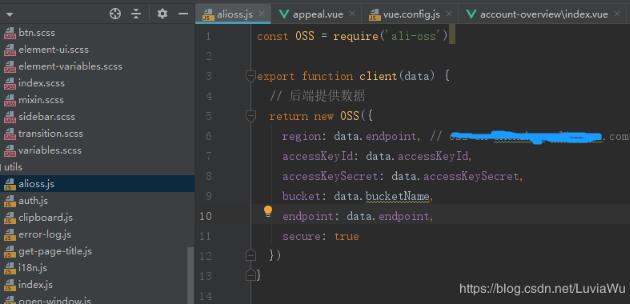
若是想减小打包后静态资源大小,可在index.html引入:(然后在client.js里注释掉const oss = require(‘ali-oss'))
<script src="http://www.51sjk.com/Upload/Articles/1/0/265/265513_20210708010803396.js"></script>
const oss = require('ali-oss')

export function client(data) {
 // 后端提供数据
 return new oss({
  region: data.endpoint, // *****.aliyuncs.com
  accesskeyid: data.accesskeyid,
  accesskeysecret: data.accesskeysecret,
  bucket: data.bucketname,
  endpoint: data.endpoint,
  secure: true
 })
}
然后,在vue页面引用,给client传入后台返回的阿里数据
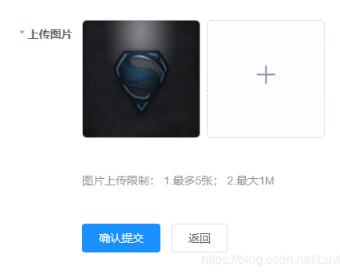
结果如下图:
1、html部分
<el-upload
 action=""
 :http-request="upload"
 :data="aliyun"
 :multiple="false"
 :show-file-list="true"
 list-type="picture-card"
 :on-preview="handlepicturecardpreview"
 :on-remove="handleremove"
 :limit="5"
>
 <i class="el-icon-plus" />
</el-upload>
<el-dialog :visible.sync="dialogvisible">
 <img width="100%" :src="dialogimageurl" alt="">
</el-dialog>
<p style="color: #999;">图片上传限制: 1.最多5张; 2.最大1m</p>
2、js部分
import { getaliyun, createorder } from '@/api/order-management'
import { client } from '@/utils/alioss'
export default {
 name: 'appeal',
 data() {
  return {
   dialogimageurl: '',
   dialogvisible: false,
   aliyun: {}, // 存签名信息
   progress: 0, // 进度条
   imgurl: [] // 存上传后的图片url
  }
 },
 created() {
  this.getaliyun()
 },
 methods: {
  // 获取阿里云数据
  async getaliyun() {
   const { data } = await getaliyun()
   this.aliyun = data
  },
  // 上传图片
  upload(file) {
   const that = this
   // 判断扩展名
   const tmpcnt = file.file.name.lastindexof('.')
   const exname = file.file.name.substring(tmpcnt + 1)
   const names = ['jpg', 'jpeg', 'png']
   if (names.indexof(exname) < 0) {
    this.$message.error('不支持的格式!')
    return
   }
   if (file.size > 1024 * 1024) {
    this.$message.error('图片大小最大1m')
    return
   }
   async function multipartupload() {
    // const filename = that.name + file.file.uid
    const filename = that.aliyun.objectname + +'/' + date.now() + '-' + file.file.name
    // filename = aliyunconfig.objectname+'/'+date.now()+'-'+file.name //所要上传的文件名拼接 (test/)
    // 定义唯一的文件名,打印出来的uid其实就是时间戳
    // client 是第一步中的 client
    client(that.aliyun).put(filename, file.file,
     {
      progress: function(p) { // 获取进度条的值
       console.log(p)
       that.progress = p * 100
      }
     }).then(
     result => {
      // 下面是如果对返回结果再进行处理,根据项目需要
      // console.log(result)
      // that.imgurl = 'http://' + result.bucket + '.' + that.aliyun.endpoint + '/' + result.name
      that.dialogimageurl = result.url
      that.imgurl.push({
       name: file.file.name,
       url: result.url
      })
      console.log(that.imgurl)
     }).catch(err => {
     console.log('err:', err)
    })
   }
   multipartupload()
  },
  // 图片预览
  handlepicturecardpreview(file) {
   this.dialogimageurl = file.url
   this.dialogvisible = true
  },
  // 删除图片
  handleremove(file, filelist) {
   // console.log(file)
   for (var i in this.imgurl) {
    if (this.imgurl[i].name === file.name) {
     this.imgurl.splice(i, 1)
    }
   }
  }
 }
}
</script>
补充知识:vue-cli项目中,配合element_ui来实现上传图片与视频到oss上。
<template>
  <div class="basicinfo">
   <el-upload class="avatar-content"
    v-loading="fileloading"
    accept="image/*"
    drag action="https://zxcity-app.oss-cn-hangzhou.aliyuncs.com"
    :show-file-list="false"
    :data="ossparams"
    :before-upload="checkparams"
    :on-progress="progress"
    :on-error="uploaderr"
    :on-success="uploadsuccess"
    :on-remove="filelistremove"
    multiple
    >
   </el-upload>
   <div v-for="(item,index) in filelist" :key="index" class="imgdiv">
    <img :src="item.imgurl" alt="">
    <p>{{item.progress}}</p>
   </div>
  </div>
</template>
<script>
import axios from 'axios'
export default {
 data () {
  return {
   form: {
    url: ''
   },
   filelist: [],
   fileloading: false,
   ossparams: {
    expiretime: '',
    key: '',
    dir: ''
   }
  }
 },
 methods: {
  // 图片上传前检测参数变化
  checkparams (file) {
   var _this = this
   var promise = new promise((resolve, reject) => {
    axios.get('http://www.51sjk.com/Upload/Articles/1/0/265/265513_20210708010803756.jpg', {})
     .then(function (response) {
      var params = response.data
      _this.ossparams = params
      _this.ossparams.name = file.name
      _this.ossparams.ossaccesskeyid = params.accessid
      _this.ossparams.success_action_status = '200'
      _this.ossparams.key = params.dir + '/' + _this.getuuid()
      var obj = {
       name: _this.ossparams.name,
       key: _this.ossparams.key,
       host: _this.ossparams.host,
       progress: 0,
       imgurl: ''
      }
      _this.filelist.push(obj)
      // _this.fileloading = true
      resolve()
     })
     .catch(function (error) {
      console.log(error, '错误')
      reject(error)
     })
   })
   return promise
  },
  // 上传中
  progress (event, file, filelist) {
   console.log('上传中...')
   console.log(file)
   console.log(filelist)
   this.filelist.foreach((item, index) => {
    if (item.name === file.name) {
     item.progress = parseint(file.percentage)
    }
   })
  },
  // 上传失败提示
  uploaderr (res) {
   this.$message.error('上传出错!')
  },
  // 上传成功后上传到file表
  uploadsuccess (response, file, filelist) {
   console.log('上传成功')
   this.filelist.foreach((item, index) => {
    if (item.name === file.name) {
     item.imgurl = item.host + '/' + item.key
     item.progress = 100
    }
   })
  },
  // 文件删除
  filelistremove (file, filelist) {
   this.form.url = ''
  },
  // 随机名称
  getuuid () {
   return `${this.str4()}${this.str4()}-${this.str4()}-${this.str4()}-${this.str4()}-${this.str4()}${this.str4()}${this.str4()}`
  },
  str4 () {
   return (((1 + math.random()) * 0x10000) | 0).tostring(16).substring(1)
  }
 }
}
</script>
<style lang="less" scoped>
.imgdiv{
 display: block;
 float: left;
 width: 80px;
 height: 100px;
 border: 2px solid black;
 img{
  display: block;
  width: 50px;
  height: 80px;
 }
 p{
  font-size: 14px;
  text-align: center;
 }
}
</style>
以上这篇vue 实现element upload上传图片到阿里云就是小编分享给大家的全部内容了,希望能给大家一个参考,也希望大家多多支持。
