
 倘若丶那天
倘若丶那天
本文实例为大家分享了android实现点击某个按钮指定位置弹出布局,供大家参考,具体内容如下
package com.topcee.report.report;

import android.app.activity;
import android.content.context;
import android.graphics.color;
import android.graphics.drawable.colordrawable;
import android.os.bundle;
import android.view.gravity;
import android.view.layoutinflater;
import android.view.view;
import android.view.viewgroup;
import android.widget.adapterview;
import android.widget.arrayadapter;
import android.widget.listview;
import android.widget.popupwindow;
import android.widget.textview;

import com.topcee.report.r;

import java.util.arraylist;
import java.util.list;

public class homeactivity extends activity {
 private context context;
 private list<string> reportlist;
 private list<string> productlist;
 private textview tvreport;
 private textview tvproduct;
 private textview tvcompany;
 private string reportname = "";
 private string productname = "";
 private string companyname = "";
 private listview lvdata;
 @override
 protected void oncreate(bundle savedinstancestate) {
  super.oncreate(savedinstancestate);
  setcontentview(r.layout.activity_home);
  context = homeactivity.this;
  initview();
 }
 private void initview(){
  lvdata = findviewbyid(r.id.lv_data);
  lvdata.setonitemclicklistener(new adapterview.onitemclicklistener() {
   @override
   public void onitemclick(adapterview<?> parent, view view, int position, long id) {

   }
  });
  tvreport = findviewbyid(r.id.tv_report);
  tvproduct = findviewbyid(r.id.tv_product);
  tvcompany = findviewbyid(r.id.tv_company);
  tvreport.setonclicklistener(new view.onclicklistener() {
   @override
   public void onclick(view v) {
    showreportdialog();
   }
  });
  tvproduct.setonclicklistener(new view.onclicklistener() {
   @override
   public void onclick(view v) {
    showproductdialog();
   }
  });
  tvcompany.setonclicklistener(new view.onclicklistener() {
   @override
   public void onclick(view v) {

   }
  });
 }

 /**
  * 报表弹窗
  */
 private void showreportdialog(){
  reportlist = new arraylist<>();
  reportlist.add("生产报表");
  reportlist.add("设备报表");
  reportlist.add("抛料率报表");
  reportlist.add("在线预警报表");
  view view = layoutinflater.from(context).inflate(r.layout.popupwindow, null);

  // 为了演示效果,简单的设置了一些数据,实际中大家自己设置数据即可,相信大家都会。
  listview lsvmore = (listview) view.findviewbyid(r.id.lsvmore);
  lsvmore.setadapter(new arrayadapter<string>(context, android.r.layout.simple_list_item_1, reportlist));

  // 创建popupwindow对象,指定宽度和高度
  popupwindow window = new popupwindow(view, viewgroup.layoutparams.wrap_content,viewgroup.layoutparams.wrap_content);
  window.setwidth(tvreport.getwidth());
  // 设置动画
//  window.setanimationstyle(r.style.popup_window_anim);
  // 设置背景颜色
  window.setbackgrounddrawable(new colordrawable(color.parsecolor("#ffffff")));
  // 设置可以获取焦点
  window.setfocusable(true);
  // 设置可以触摸弹出框以外的区域
  window.setoutsidetouchable(true);
  // 更新popupwindow的状态
  window.update();
  // 以下拉的方式显示,并且可以设置显示的位置
//  window.showasdropdown(tvreport, 0, 20);
  window.showatlocation(tvreport, gravity.left | gravity.bottom, 0, 50);//这里的50是因为我底部按钮的高度是50
  lsvmore.setonitemclicklistener(new adapterview.onitemclicklistener() {
   @override
   public void onitemclick(adapterview<?> parent, view view, int position, long id) {
    if("生产报表".equals(reportname)){

    }
   }
  });
 }

 /**
  * 生产情况弹窗
  */
 private void showproductdialog(){
  productlist = new arraylist<>();
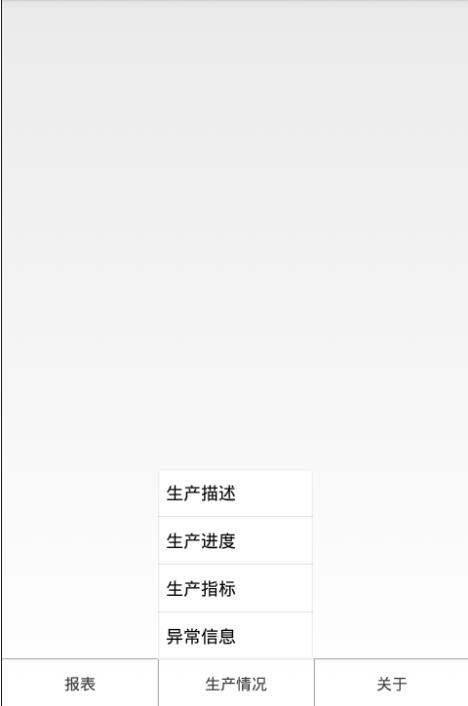
  productlist.add("生产描述");
  productlist.add("生产进度");
  productlist.add("生产指标");
  productlist.add("异常信息");
  view view = layoutinflater.from(context).inflate(r.layout.popupwindow, null);

  // 为了演示效果,简单的设置了一些数据,实际中大家自己设置数据即可,相信大家都会。
  listview lsvmore = view.findviewbyid(r.id.lsvmore);
  lsvmore.setadapter(new arrayadapter<string>(context, android.r.layout.simple_list_item_1, productlist));

  // 创建popupwindow对象,指定宽度和高度
  popupwindow window = new popupwindow(view, viewgroup.layoutparams.wrap_content,viewgroup.layoutparams.wrap_content);
  window.setwidth(tvproduct.getwidth());
  // 设置动画
//  window.setanimationstyle(r.style.popup_window_anim);
  // 设置背景颜色
  window.setbackgrounddrawable(new colordrawable(color.parsecolor("#ffffff")));
  // 设置可以获取焦点
  window.setfocusable(true);
  // 设置可以触摸弹出框以外的区域
  window.setoutsidetouchable(true);
  // 更新popupwindow的状态
  window.update();
  // 以下拉的方式显示,并且可以设置显示的位置
//  window.showasdropdown(tvproduct, 0, 20);
  window.showatlocation(tvproduct, gravity.center | gravity.bottom, 0, 50);
  lsvmore.setonitemclicklistener(new adapterview.onitemclicklistener() {
   @override
   public void onitemclick(adapterview<?> parent, view view, int position, long id) {
    productname = productlist.get(position);//获取点击的状态名字

   }
  });
 }
}
activity_home.xml
<?xml version="1.0" encoding="utf-8"?>
<relativelayout xmlns:android="http://schemas.android.com/apk/res/android"
 xmlns:app="http://schemas.android.com/apk/res-auto"
 xmlns:tools="http://schemas.android.com/tools"
 android:layout_width="match_parent"
 android:layout_height="match_parent"
 tools:context=".report.homeactivity">
 <linearlayout
  android:id="@+id/ll_list"
  android:layout_width="match_parent"
  android:layout_height="match_parent"
  android:layout_above="@+id/activity_home_btn_layout">
  <listview
   android:id="@+id/lv_data"
   android:layout_width="match_parent"
   android:layout_height="match_parent"
   android:divider="@null">
  </listview>
 </linearlayout>

 <view
  android:id="@+id/activity_home_bottom_line_layout"
  android:layout_above="@+id/activity_home_btn_layout"
  style="@style/style_row_line_view"/>
 <linearlayout
  android:id="@+id/activity_home_btn_layout"
  android:layout_width="match_parent"
  android:layout_height="50dp"
  android:layout_alignparentbottom="true">
  <textview
   android:id="@+id/tv_report"
   style="@style/style_activity_home_text_view"
   android:layout_weight="1"
   android:clickable="true"
   android:background="@drawable/btn_pressed"
   android:text="报表"/>
  <!--<imageview
   android:layout_width="25dp"
   android:layout_height="match_parent"
   android:layout_gravity="center"
   android:layout_marginright="5dp"
   android:layout_marginbottom="3dp"
   android:clickable="true"
   android:background="@drawable/btn_pressed"/>-->
  <view style="@style/style_column_line_view"/>
  <textview
   android:id="@+id/tv_product"
   style="@style/style_activity_home_text_view"
   android:layout_weight="1"
   android:clickable="true"
   android:background="@drawable/btn_pressed"
   android:text="生产情况"/>
  <!--<imageview
   android:layout_width="25dp"
   android:layout_height="match_parent"
   android:layout_gravity="center"
   android:layout_marginright="5dp"
   android:layout_marginbottom="3dp"
   android:clickable="true"
   android:background="@drawable/btn_pressed"/>-->
  <view style="@style/style_column_line_view"/>
  <textview
   android:id="@+id/tv_company"
   style="@style/style_activity_home_text_view"
   android:layout_weight="1"
   android:text="关于"
   android:clickable="true"
   android:background="@drawable/btn_pressed"/>
  <!--<imageview
   android:layout_width="25dp"
   android:layout_height="match_parent"
   android:layout_gravity="center"
   android:layout_marginright="5dp"
   android:layout_marginbottom="3dp"
   android:clickable="true"
   android:background="@drawable/btn_pressed"/>-->
 </linearlayout>

</relativelayout>
btn_pressed.xml
<?xml version="1.0" encoding="utf-8"?>
<selector xmlns:android="http://schemas.android.com/apk/res/android">
 <item android:drawable="@drawable/triangle_bg_pressed" android:state_pressed="true"></item>
 <item android:drawable="@drawable/triangle_bg"></item>
</selector>
triangle_bg.xml
<?xml version="1.0" encoding="utf-8"?>
<layer-list xmlns:android="http://schemas.android.com/apk/res/android">
 <item
  android:id="@+id/shape"
  android:left="-2dp"
  android:bottom="-2dp">
  <!-- 长方形 -->
  <shape android:shape="rectangle">
   <stroke android:color="#dfdfdf" android:width="1dp"/>
   <solid android:color="#dfdfdf"></solid>
  </shape>
 </item>
 <item android:id="@+id/shape_id">
  <!-- 正三角 -->
  <rotate
   android:fromdegrees="50"
   android:todegrees="-50"
   android:pivotx="-50%"
   android:pivoty="100%">
   <shape android:shape="rectangle">
    <solid android:color="#dfdfdf"/>
   </shape>
  </rotate>
 </item>
</layer-list>
triangle_bg_pressed.xml
<?xml version="1.0" encoding="utf-8"?>
<layer-list xmlns:android="http://schemas.android.com/apk/res/android">
 <item
  android:id="@+id/shape"
  android:left="-2dp"
  android:bottom="-2dp">
  <!-- 长方形 -->
  <shape android:shape="rectangle">
   <stroke android:color="#dfdfdf" android:width="1dp"/>
   <solid android:color="#dfdfdf"></solid>
  </shape>
 </item>
 <item android:id="@+id/shape_id">
  <!-- 正三角 -->
  <rotate
   android:fromdegrees="50"
   android:todegrees="-50"
   android:pivotx="-50%"
   android:pivoty="100%">
   <shape android:shape="rectangle">
    <solid android:color="#dfdfdf"/>
   </shape>
  </rotate>
 </item>
</layer-list>
这里本来是想在右下角显示一个小三角形的,不知道为啥不显示,给它单独拿出来设置宽度和高度就显示。希望有知道的给我解惑一下。大家知识共享。
popupwindow.xml
<?xml version="1.0" encoding="utf-8"?>
<linearlayout xmlns:android="http://schemas.android.com/apk/res/android"
 android:layout_width="match_parent"
 android:layout_height="match_parent"
 android:background="@drawable/popupwindow_bg">

 <listview
  android:id="@+id/lsvmore"
  android:layout_width="wrap_content"
  android:layout_height="wrap_content"/>
</linearlayout>
这是最终的效果。
以上就是本文的全部内容,希望对大家的学习有所帮助,也希望大家多多支持。
