
pc版react重构,使用到了高德地图。搜了资料,发现有一个针对react进行封装的地图插件react-amap。官方网址:,有兴趣的可以看下里面的api。
react-amap 安装
1、使用npm进行安装,目前是1.2.8版本:
cnpm i react-amap
2、直接使用sdn方式引入
<script src="http://www.51sjk.com/Upload/Articles/1/0/256/256263_20210629002544523.js"></script>
react-amap 使用
import react,{component} from 'react'
import {map,marker} from 'react-amap'
const mapkey = '1234567809843asadasd' //需要自己去高德官网上去申请
class address extends component {
	constructor (props) {
        super (props)
        this.state = {
        }
    }
	render(){
		return (
			<div style={{width: '100%', height: '400px'}}>
				<map amapkey={mapkey}
				     zoom={15}></map>
			</div>
		)
	}
}

export default address
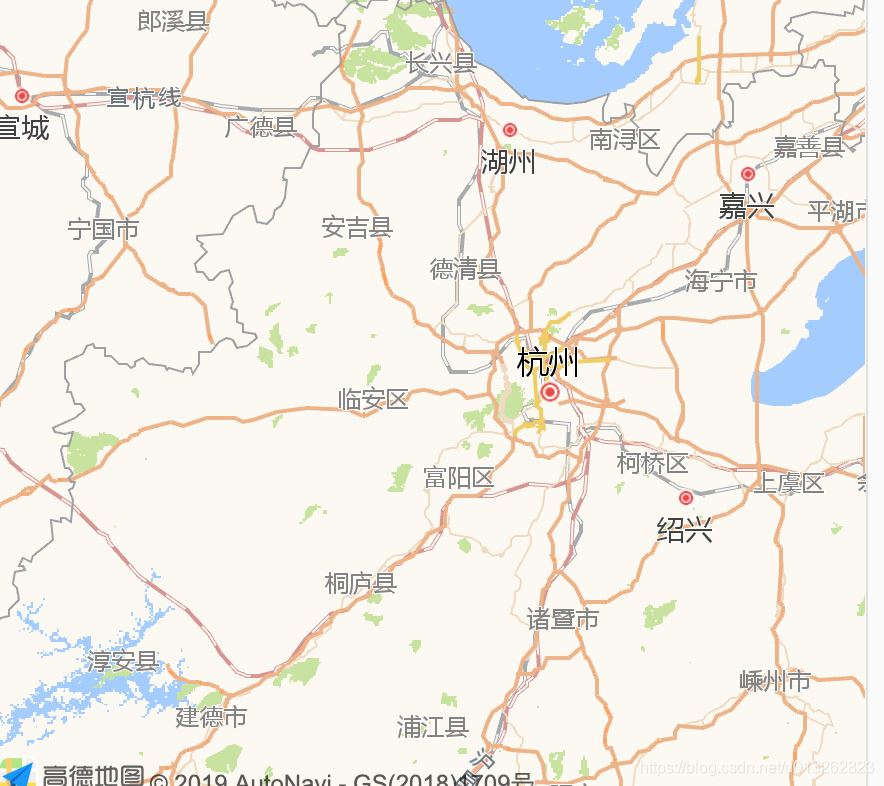
这样的话,就会初始化一个简单的地图。
实际开发过程中,你会有比较复杂的使用场景。比如需要标记点、对地图进行缩放、能够定位到当前位置、位置搜索等等功能。需求大致如下图所示:
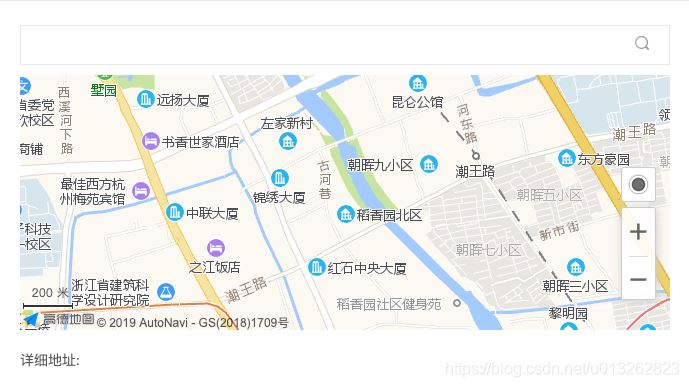
这样的话,那就需要引入插件以及组件的概念了。
toolbar、scale插件
<map plugins={["toolbar", 'scale']}></map>
marker 地图标记
<map>
	<marker position={['lng','lat']}></marker>
</map>
infowindow 窗体组件
<map>
	<infowindow
            position={this.state.position}
            visible={this.state.visible}
            iscustom={false}
            content={html}
            size={this.state.size}
            offset={this.state.offset}
            events={this.windowevents}
          />
</map>
通过 created 事件实现更高级的使用需求,在高德原生实例创建成功后调用,参数就是创建的实例;获取到实例之后,就可以根据高德原生的方法对实例进行操作:
const events = {
    created: (instance) => { console.log(instance.getzoom())},
    click: () => { console.log('you clicked map') }
}
<map events={events}  />
实现一个较为复杂地址搜索,地址标记、逆地理解析代码:
import react , { component } from 'react'
import { modal , input } from 'antd'
import styles from './index.scss'
import classname from 'classnames'
import { map ,marker,infowindow} from 'react-amap'
import marker from 'src/statics/images/signin/marker2.png'

const mapkey = '42c177c66c03437400aa9560dad5451e'

class address extends component {
    constructor (props) {
        super(props)
        this.state = {
            signaddrlist:{
                name:'',
                addr:'',
                longitude: 0,
                latitude: 0
            },
            geocoder:'',
            searchcontent:'',
            ischose:false
        }
    }

    //改变数据通用方法(单层)

    changedata = (value, key) => {
        let { signaddrlist } = this.state
        signaddrlist[key] = value
        this.setstate({
            signaddrlist:signaddrlist
        })
    }

    placesearch = (e) => {
        this.setstate({searchcontent:e})
    }

    searchplace = (e) => {
        console.log(1234,e)
    }


    componentdidmount() {

    }

    render() {
        let { changemodal , saveaddressdetail } = this.props
        let { signaddrlist } = this.state
        const selectaddress = {
            created:(e) => {
                let auto
                let geocoder
                window.amap.plugin('amap.autocomplete',() => {
                    auto = new window.amap.autocomplete({input:'tipinput'});
                })

                window.amap.plugin(["amap.geocoder"],function(){
                    geocoder= new amap.geocoder({
                        radius:1000, //以已知坐标为中心点,radius为半径,返回范围内兴趣点和道路信息
                        extensions: "all"//返回地址描述以及附近兴趣点和道路信息,默认"base"
                    });
                });

                window.amap.plugin('amap.placesearch',() => {
                    let place = new window.amap.placesearch({})
                    let _this = this
                    window.amap.event.addlistener(auto,"select",(e) => {
                        place.search(e.poi.name)
                        geocoder.getaddress(e.poi.location,function (status,result) {
                            if (status === 'complete'&&result.regeocode) {
                                let address = result.regeocode.formattedaddress;
                                let data = result.regeocode.addresscomponent
                                let name = data.township +data.street + data.streetnumber
                                _this.changedata(address,'addr')
                                _this.changedata(name,'name')
                                _this.changedata(e.poi.location.lng,'longitude')
                                _this.changedata(e.poi.location.lat,'latitude')
                                _this.setstate({ischose:true})
                            }
                        })
                    })
                })
            },
            click:(e) => {
                const _this = this
                var geocoder
                var infowindow
                var lnglatxy=new amap.lnglat(e.lnglat.lng,e.lnglat.lat);
                let content = '<div>定位中....</div>'

                window.amap.plugin(["amap.geocoder"],function(){
                    geocoder= new amap.geocoder({
                        radius:1000, //以已知坐标为中心点,radius为半径,返回范围内兴趣点和道路信息
                        extensions: "all"//返回地址描述以及附近兴趣点和道路信息,默认"base"
                    });
                    geocoder.getaddress(e.lnglat,function (status,result) {
                        if (status === 'complete'&&result.regeocode) {
                            let address = result.regeocode.formattedaddress;
                            let data = result.regeocode.addresscomponent
                            let name = data.township +data.street + data.streetnumber

                            _this.changedata(address,'addr')
                            _this.changedata(name,'name')
                            _this.changedata(e.lnglat.lng,'longitude')
                            _this.changedata(e.lnglat.lat,'latitude')
                            _this.setstate({ischose:true})
                        }
                    })
                });

            }
        }
        return (
            <div>
                <modal visible={true}
                       title="办公地点"
                       centered={true}
                       oncancel={() => changemodal('addressstatus',0)}
                       onok={() => saveaddressdetail(signaddrlist)}
                       width={700}>
                    <div classname={styles.serach}>
                        <input id="tipinput"
                               classname={styles.searchcontent}
                               onchange={(e) => this.placesearch(e.target.value)}
                               onkeydown={(e) => this.searchplace(e)} />
                        <i classname={classname(styles.serachicon,"iconfont icon-weibiaoti106")}></i>
                    </div>
                    <div classname={styles.mapcontainer} id="content" >
                        {
                            this.state.ischose ? <map amapkey={mapkey}
                                                      plugins={["toolbar", 'scale']}
                                                      events={selectaddress}
                                                      center={ [ signaddrlist.longitude,signaddrlist.latitude] }
                                                      zoom={15}>
                                <marker position={[ signaddrlist.longitude,signaddrlist.latitude]}/>
                            </map> : <map amapkey={mapkey}
                                          plugins={["toolbar", 'scale']}
                                          events={selectaddress}
                                          zoom={15}>
                                <marker position={[ signaddrlist.longitude,signaddrlist.latitude]}/>
                            </map>
                        }
                    </div>
                    <div classname="mar-t-20">详细地址:
                        <span classname="cor-dark mar-l-10">{signaddrlist.addr}</span>
                    </div>
                </modal>
            </div>
        )
    }
}

export default address
到此这篇关于react使用高德地图的实现示例(react-amap)的文章就介绍到这了,更多相关react 高德地图内容请搜索以前的文章或继续浏览下面的相关文章希望大家以后多多支持!
